What does a keyboard lock actually do?
Mac Input Lock intercepts local keyboard, mouse, and trackpad input while the app is locked. A brush across the keys cannot type into the app underneath, and a trackpad click cannot move you to another window. Your screen stays visible; calls and playback continue normally.
It is a convenience for avoiding accidental input, including during a quick dry dusting. For cleaning with a damp cloth or cleaning products, follow Apple's shutdown instructions. You do not need to buy an app to shut down or disconnect a keyboard.
Follow physical-cleaning guidance
Stops the computer. Use the manufacturer-recommended approach for the cleaning you are doing.
Protect access or save power
Neither is a dedicated input lock. Keys can still wake the Mac or act on the login screen.
Keep the current screen visible
Blocks accidental typing and clicks while software continues. It does not provide password security.
Set up Mac Input Lock
Install and open the app
Drag Mac Input Lock into Applications, then open it. It requires macOS 14 Sonoma or later on an Apple Silicon or Intel Mac. Find the padlock in the menu bar. If it is hidden, reopen the app from Applications or Spotlight to bring up its full controls.
Allow Accessibility access
In System Settings → Privacy & Security → Accessibility, enable Mac Input Lock. The app uses this powerful system permission to intercept input events and recognize your unlock sequence locally. It does not record or transmit your typing.
Choose and test an unlock sequence
Use one or more visible, case-sensitive characters you can remember. For example,
unlockis different fromUnlock. Lock and unlock once before relying on it. A long, distinctive sequence is less likely to be typed accidentally; this is not a security password.
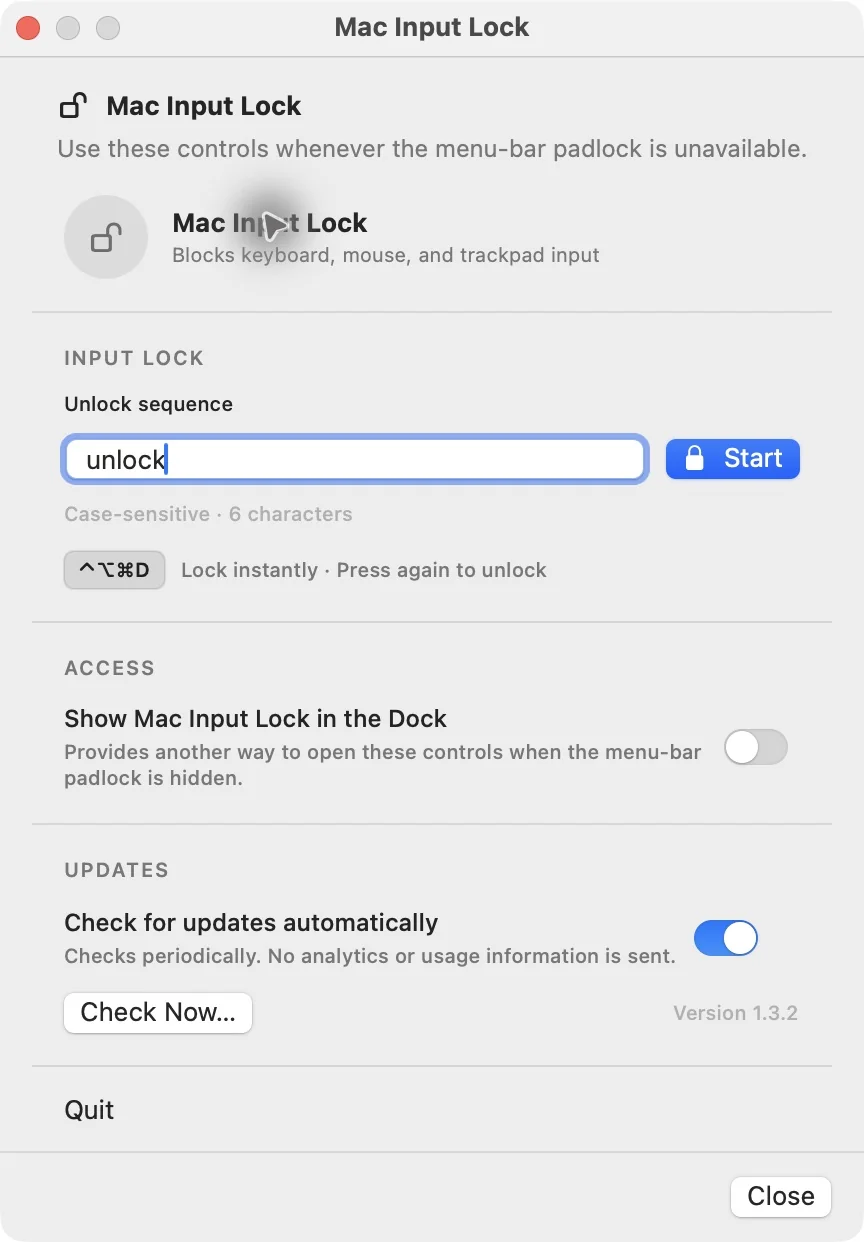
Lock, then unlock when you are ready
Press Start for a five-second countdown. To lock immediately, press Control–Option–Command–D (⌃⌥⌘D). The shortcut works while the app is running and ready to lock.
Choose the countdown or lock instantly.
The screen stays visible. Typing and clicks stop.
Enter your key sequence, or press ⌃⌥⌘D again.
The same shortcut restores input instantly; your chosen sequence also works. Mac Input Lock blocks built-in and connected keyboards, mice, trackpads, scrolling, dragging, and media-key events that pass through the macOS session event stream. Hardware controls outside that stream, including the physical power button, remain controlled by macOS.
If input does not come back
First try the exact case-sensitive unlock sequence and Control–Option–Command–D. While locked, clicking the menu or using ordinary Force Quit is not a practical fallback because those inputs are blocked.
If neither unlock method works, hold the physical power or Touch ID button until your Mac turns off, then restart. Unsaved work may be lost. Mac Input Lock does not automatically relock after restarting.
If input is already working but you cannot find the padlock, reopen Mac Input Lock. You can enable Show Mac Input Lock in the Dock in its controls for another way to find it.