Recommended$9
Official ready-to-install app
For people who simply want Mac Input Lock to work.
- Signed and notarized by the developer
- Universal Apple Silicon and Intel build
- Automatic in-app updates included
- Use on all Macs in your household
Your calls, videos, and music keep playing.
Temporarily block every keyboard, mouse, and trackpad on your Mac while your screen, sound, camera, and microphone continue working.
One-time purchase · Household use · macOS 14 or later · Apple Silicon and Intel
Open source, with a convenient official build
Open source under MIT. The official ready-to-install app costs $9 once, including automatic updates. You can also build it yourself for free.
For people who simply want Mac Input Lock to work.
Every line remains public under the MIT license.
You are paying for the official build and continued maintenance—not for access to the source code.
Looking for Guided Access?
Keep a toddler from clicking away from a video, ending a family call, changing the volume, or typing into another app—all while the screen, sound, camera, and microphone keep working.
One job. Done well.
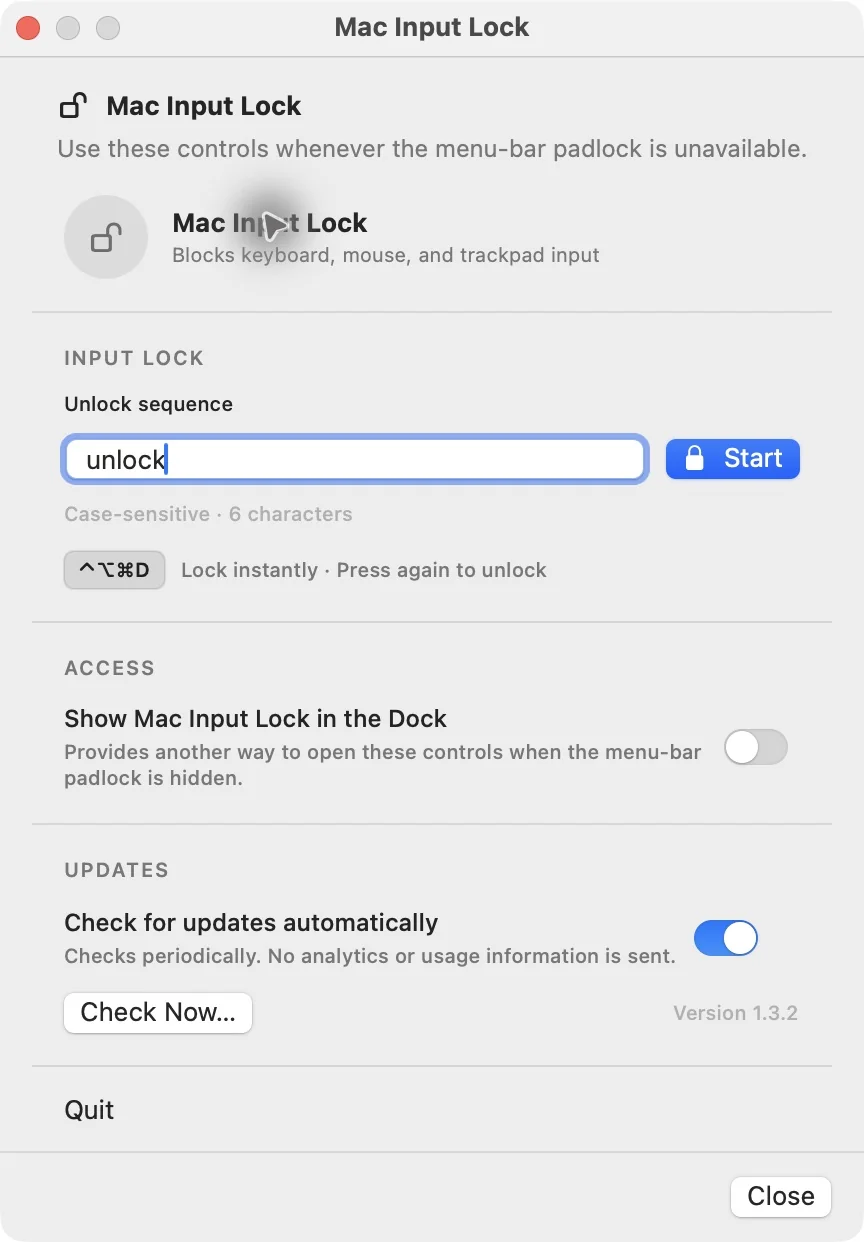
No accounts, modes, or complicated setup. You choose the keys that unlock your Mac.
Use any case-sensitive key sequence with one or more visible characters. It is a convenience, not a password.
A clear five-second countdown gives you time to prepare before all pointer and keyboard input is blocked.
Enter the exact unlock sequence. Every keyboard, mouse, and trackpad becomes responsive again.
Instant one-hand shortcut
Press Control–Option–Command–D anywhere to lock immediately without the countdown. All four keys fit under your left hand. Press the same shortcut while locked to restore input instantly; your unlock sequence still works too.
What gets locked
Built-in and external keyboards become inert.
Clicks, scrolling, dragging, and gestures are blocked.
Calls, video, music, camera, and microphone continue.
Transparent by design
Mac Input Lock has no analytics, accounts, background service, advertising, or telemetry. Your input stays on your Mac. Optional update checks and downloads use the network without sending your keystrokes or app-usage information.
Read the permission explanation →Apple notarizedVerified before every release
Minimal permissionAccessibility only, to suppress input
Open sourceEvery line is public under MIT
Automatic updatesOptional checks with no analytics
Practical guides
A family call, a quick keyboard wipe, or a cat on the desk: start with what you want to keep on screen.
Videos, calls, audio stories, and photo slideshows, without accidental taps ending them.
Read the guide →A cleaner keyboardUnderstand what input locking helps with, and when Apple recommends shutting down.
Read the guide →An informed choiceA sourced comparison of Mac Input Lock, KeyboardCleanTool, CleanLock, and Warden.
Compare apps →Questions, answered
Open source under MIT. The official ready-to-install app costs $9 once, including automatic updates. You can also build it yourself for free. The official purchase covers all Macs in your household. No subscription, activation, or app account is required.
Mac Input Lock needs Accessibility permission to intercept keyboard and pointer events system-wide. It recognizes your unlock sequence locally and does not record or transmit your typing. The app has no analytics or telemetry. Optional update checks and downloads use the network; the website separately uses Google Ads purchase measurement.
Choose a case-sensitive unlock sequence of one or more visible characters, then press Start for a five-second countdown. Type the exact key sequence to unlock. You can also press Control–Option–Command–D (⌃⌥⌘D) to lock immediately and press the same shortcut again to unlock.
If input is unlocked but the icon is hidden, reopen Mac Input Lock from Applications or Spotlight to show its controls. While input is locked, try your unlock sequence or Control–Option–Command–D. If neither works, hold the physical power or Touch ID button until your Mac turns off, then restart. Unsaved work may be lost. Ordinary Force Quit controls are not practical while input is blocked.
Yes. Mac Input Lock blocks local input while your screen, calls, videos, music, camera, and microphone continue. It does not pause playback or mute your microphone. Your apps, network connection, and normal macOS sleep settings still determine whether those activities continue.
The official app requires macOS 14 Sonoma or later and supports both Apple Silicon and Intel Macs. It blocks built-in and connected keyboards, mice, and trackpads. Physical hardware controls outside the macOS event stream, including the power button, remain controlled by macOS.
You can enable optional automatic updates in the app's controls or choose Check Now to check manually. Existing customers can also reuse their bookmarked receipt download page to reinstall the current official build. You do not need to buy again for updates.
Mac Input Lock leaves your current screen visible and blocks accidental input. macOS Lock Screen protects access to your desktop and hides it behind a login screen. iPhone and iPad Guided Access can restrict a device to one app; Mac Input Lock does not confine apps, filter content, or provide parental controls. An unlock sequence is a convenience, not a security password.
Know before you lock
If the menu-bar padlock is hidden, open Mac Input Lock again from Applications, Launchpad, or Spotlight. Its full control window will appear even while the app is already running. You can also turn on Show Mac Input Lock in the Dock there for a permanent second way to find it.
Test your unlock sequence before handing the Mac to a child. While locked, ordinary Force Quit controls are not practical because local input is intentionally blocked.
If the unlock sequence does not work, hold the physical power or Touch ID button until the Mac turns off, then restart. Unsaved work may be lost. The app will not automatically relock after restart.
Read the complete safety notes →
Open source, private by design, and built to do exactly one thing.
Get the official app — $9 Or build it yourself for free →